Autorización de documentos de identidad
Understand the basics
This authorization allows a participant to upload its identity documents into the platform, and get their account verified. These documents depend on the organization, they could be a driver’s license, a passport, a national identity card, a club membership card, etc.
| If you don’t want to collect any data, you should turn it off in the System panel. |
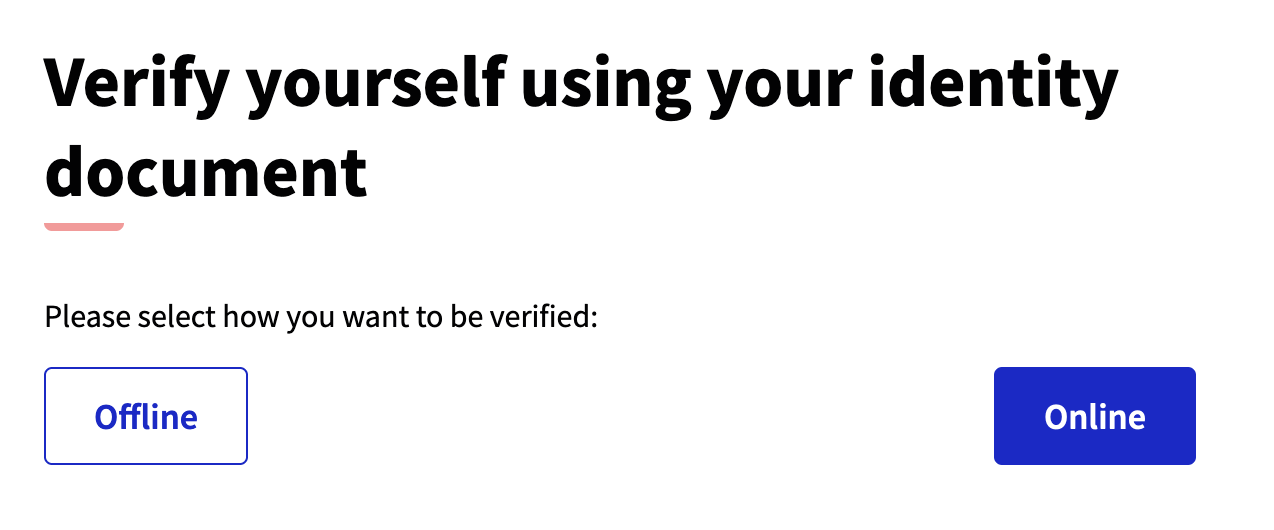
These documents are reviewed by an administrator who can accept or reject them. It’s possible to do this process in two ways:
-
Online: the participant is asked to upload the documents, and the administrator reviews these documents.
-
Offline: the participant is asked to fill in some data, and then they need to go to a physical place to show their documents face to face.
Configuración
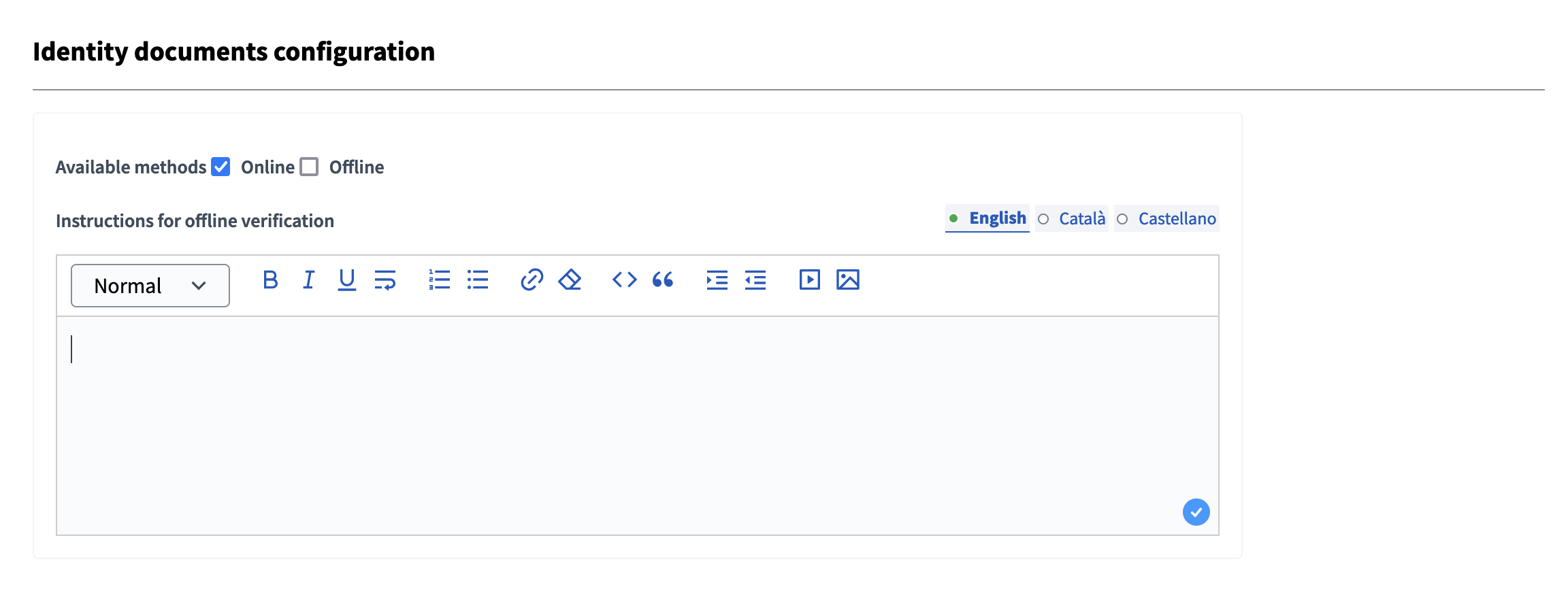
Click the "Config" button to configure the authorization.
| Campo | Tipo | Descripción |
|---|---|---|
Métodos disponibles |
Requerido |
Debe seleccionar al menos un método. Opciones: En línea y/o sin conexión. |
Instrucciones para la verificación sin conexión |
Requerido (si está desconectado está seleccionado) |
Direcciones que los participantes deben seguir para verificar sus documentos cuando se selecciona la verificación sin conexión. Por ejemplo, ¿necesitan ir a un lugar específico para mostrar sus documentos? ¿Este lugar está abierto algunos días de la semana? ¿Está abierto durante ciertas horas? |
Online verification
El proceso es:
-
Los participantes rellenan su tipo de documento y su número y cargan una copia de su documento.
-
Un administrador rellena la información presente en la imagen cargada.
-
La información debe coincidir con lo que el usuario haya rellenado.
-
If the administrator can’t see the information or they can’t get it verified, they can reject the request and the user will be able to fix it.
1. Participant authorization creation
Viendo a la sección de autorización en su perfil, o haciendo clic en el botón de acción si este permiso es solicitado, un participante puede ver el formulario para subir una copia de su documento. También necesitan rellenar su tipo de documento y número.
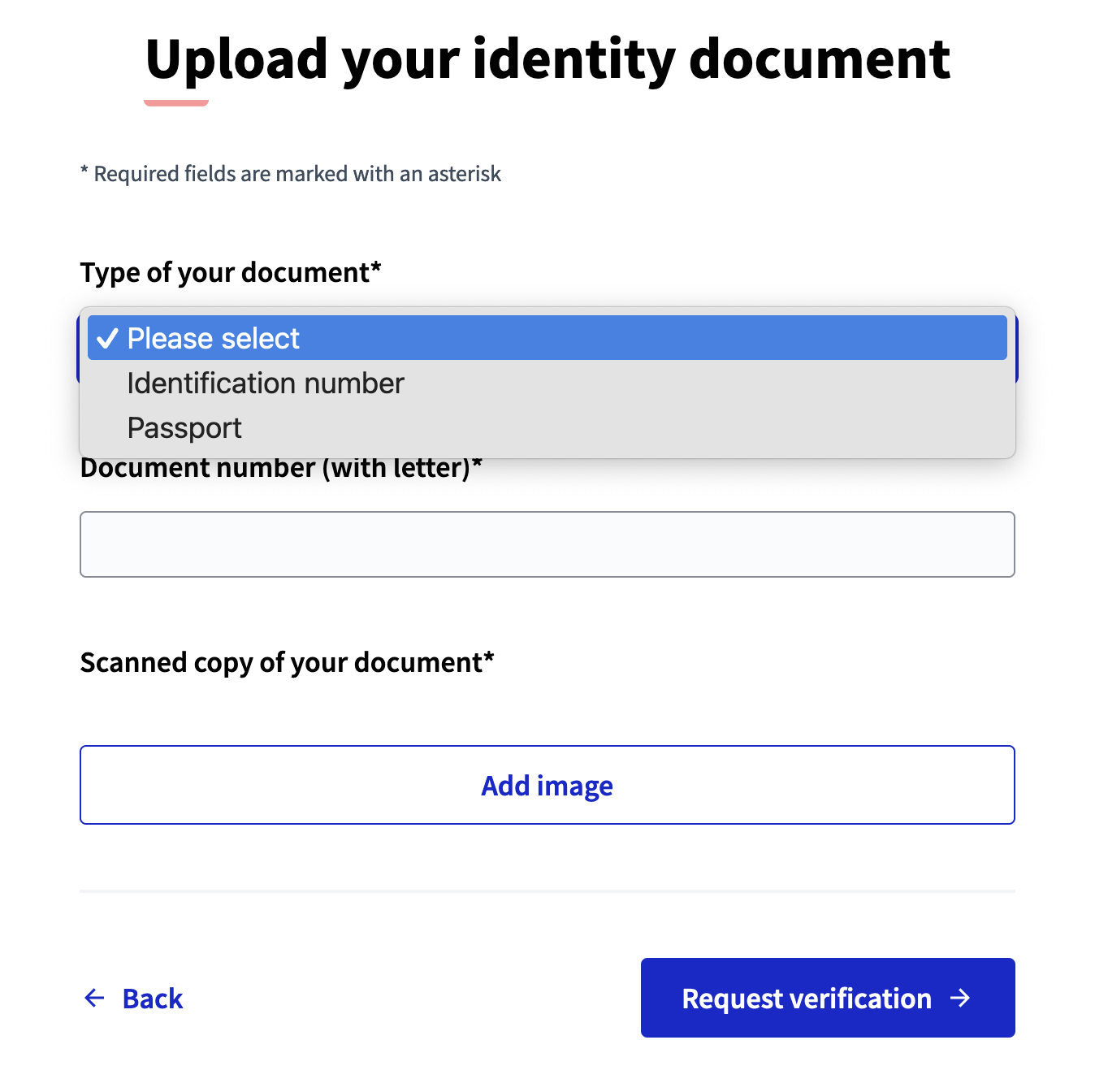
| You can change the document types options by customizing or overriding the code. |
2. Administrator document review
After this document is uploaded, an administrator can review it by going to the Identity documents section in the administration panel.
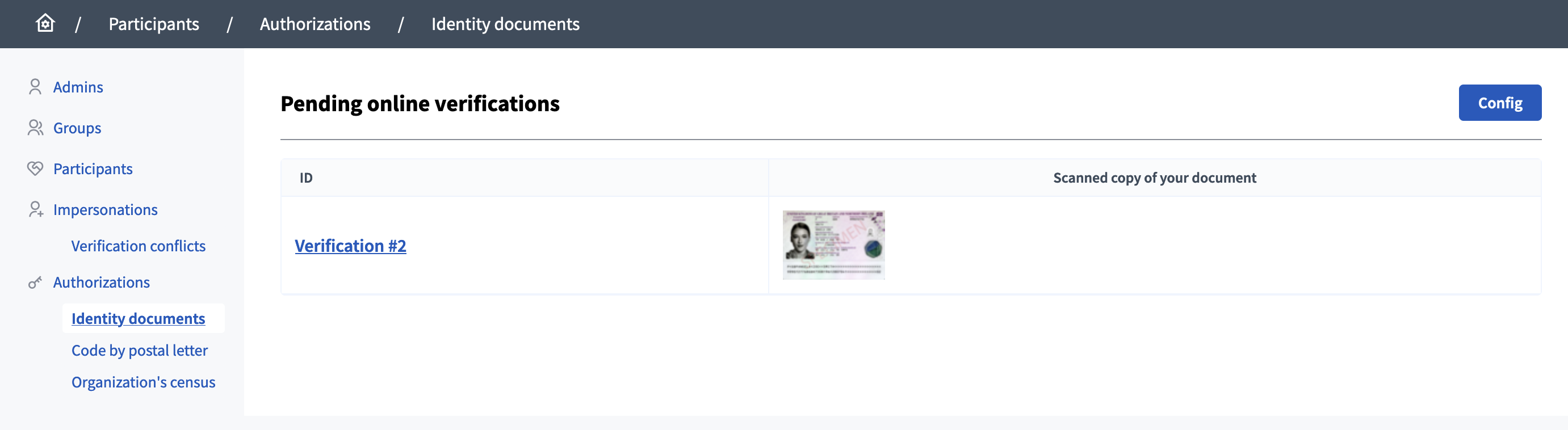
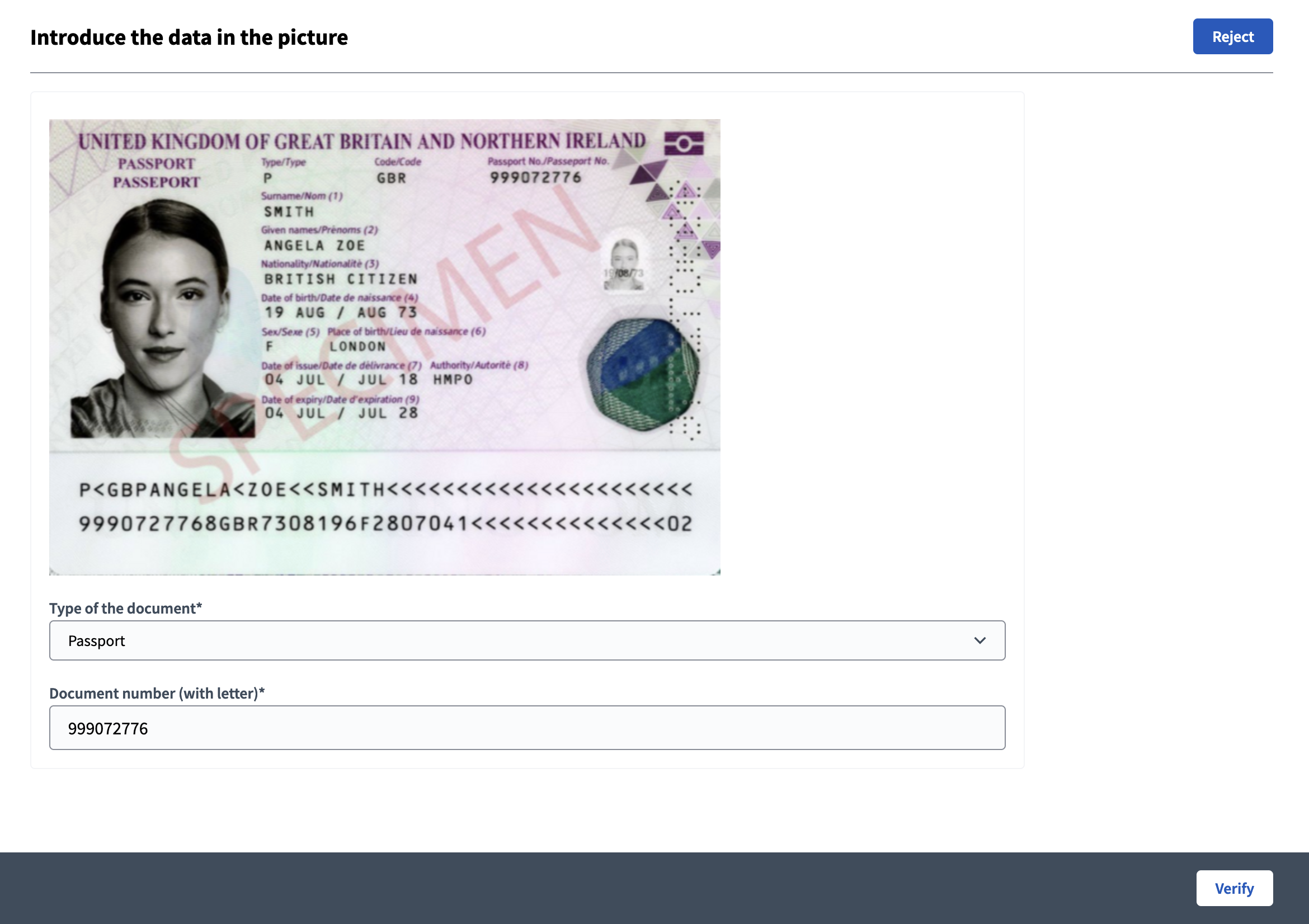
After clicking on the verification id link or on the document, the administrator needs to review the image and fill in the document number in the field. This number needs to match with the one provided by the participant.
3. Administrator decision
There are two actions an administrator can do:
-
Verify: the system checks if the document numbers entered by administrator and user are the same.
-
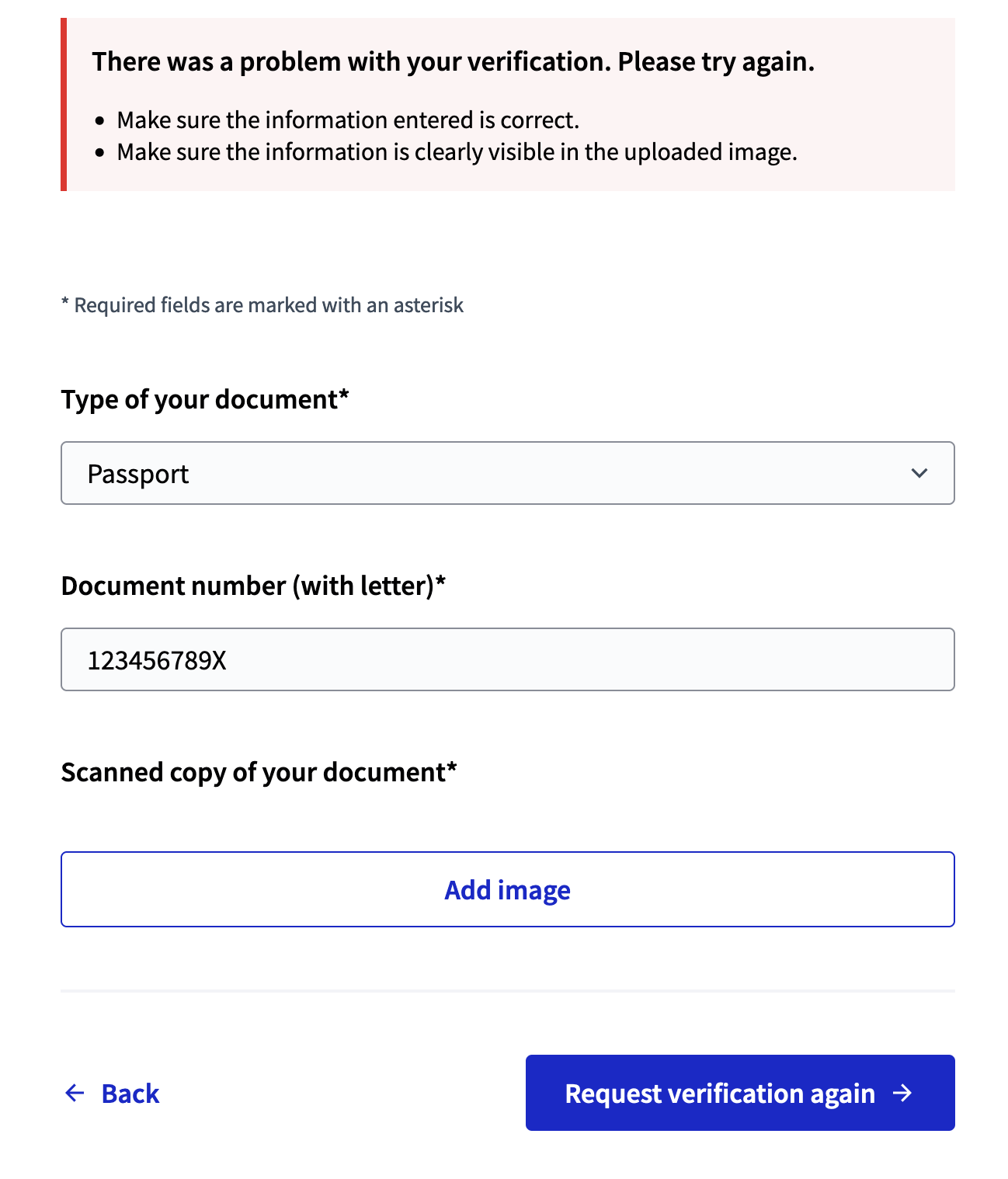
Reject: the participant have to edit their authorization if they want to get verified.
Si la solicitud es rechazada, el participante puede proporcionar otras fotos o documentos.
Once a participant is verified, their documents are deleted from the list.
Offline verification
El proceso es:
-
Los participantes rellenan su tipo de documento y número.
-
Los participantes siguen las instrucciones que se les han dado. For instance, if they need to go to a specific place in a specific time to show their documents.
-
Un administrador va al panel de "Verificación sin conexión" y rellena la información presente en los documentos físicos.
-
La información debe coincidir con lo que el usuario haya rellenado.
-
If the administrator can’t see the information or they can’t get it verified, they can reject the request and the user is then able to fix it.
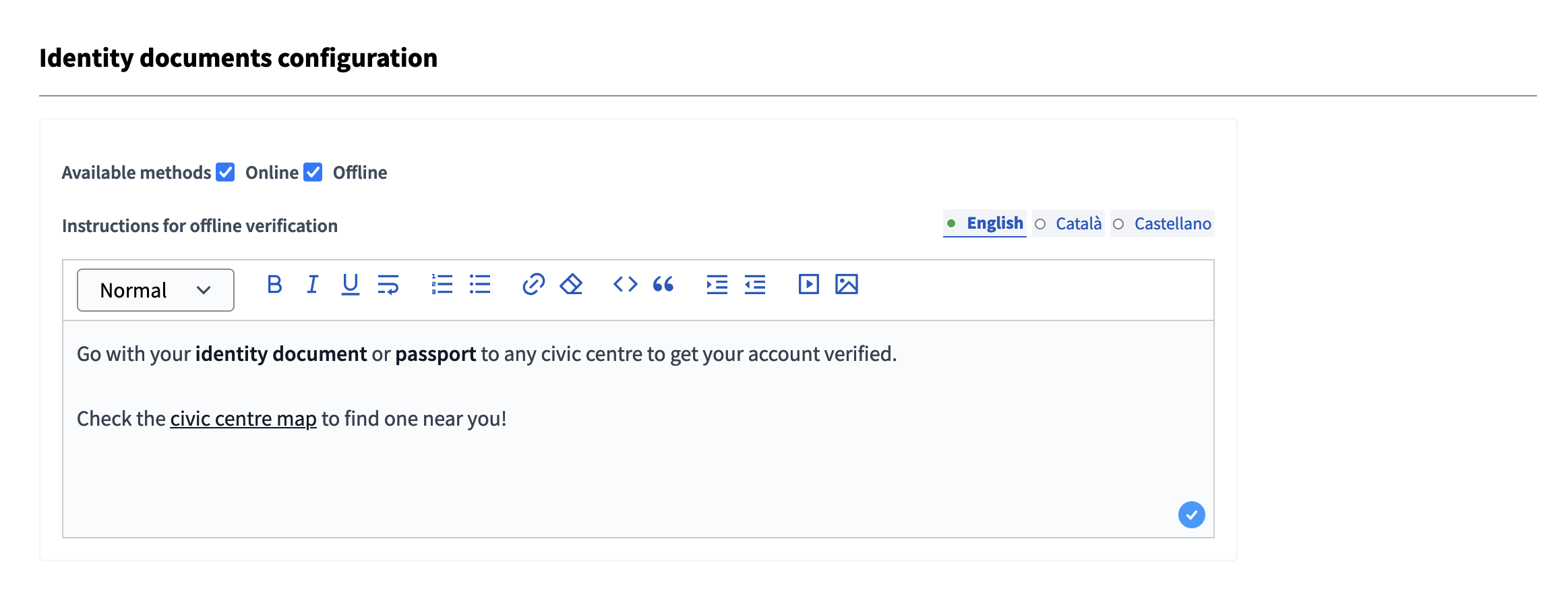
For this authorization to work, an administrator need to first configure it in the administration panel with the instructions explaining what the participant need to do to finish the verification process.
1. Participant authorization creation
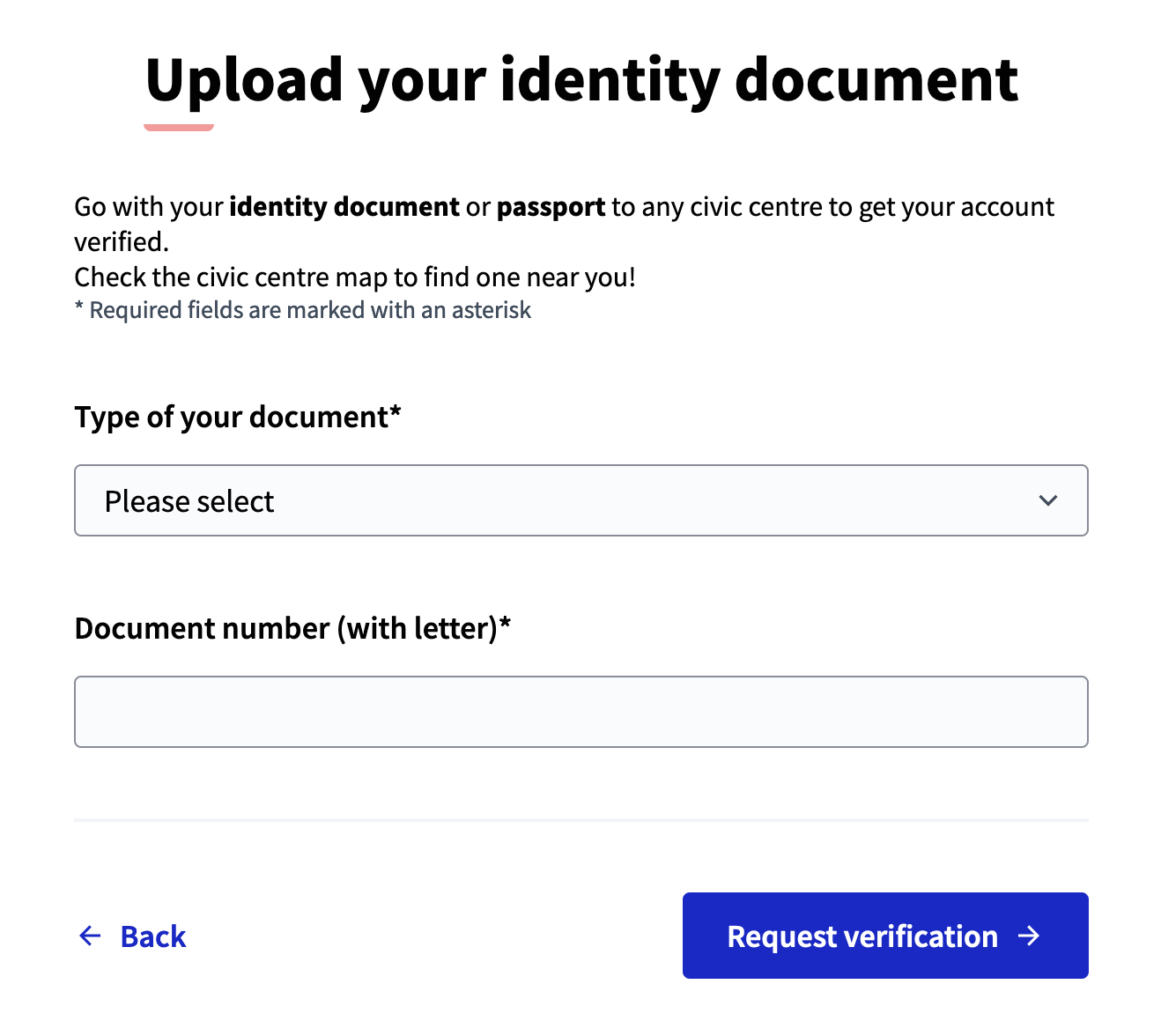
Viendo a la sección de autorización en su perfil, o haciendo clic en el botón de acción si este permiso es solicitado, un participante puede ver el formulario para rellenar su tipo de documento y número.
2. Administrator document review
In the administration panel, the administrator can review the request by clicking the "Offline verification" button.
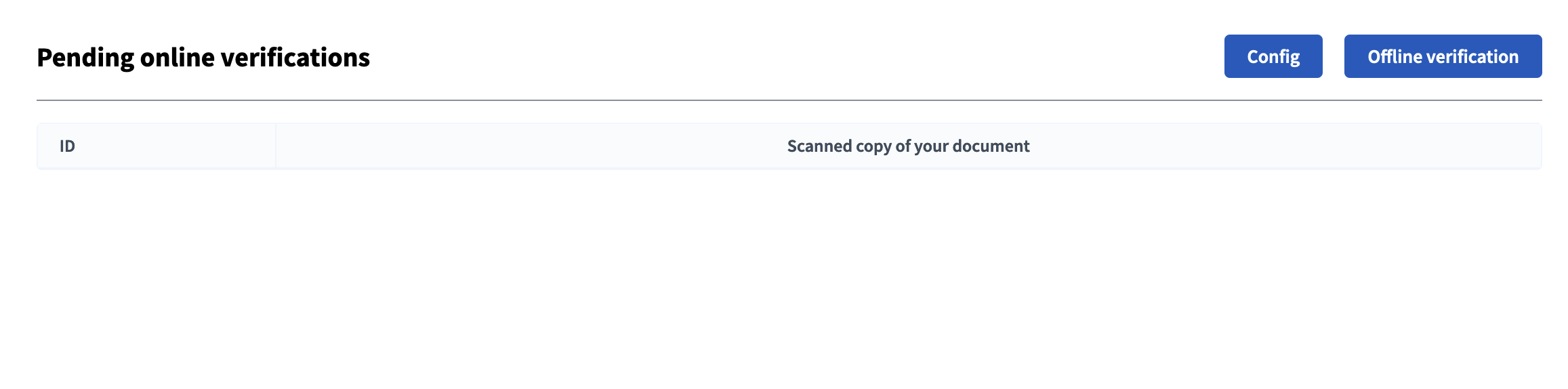
Then they need to fill some data provided by the participant and review the document physically provided.
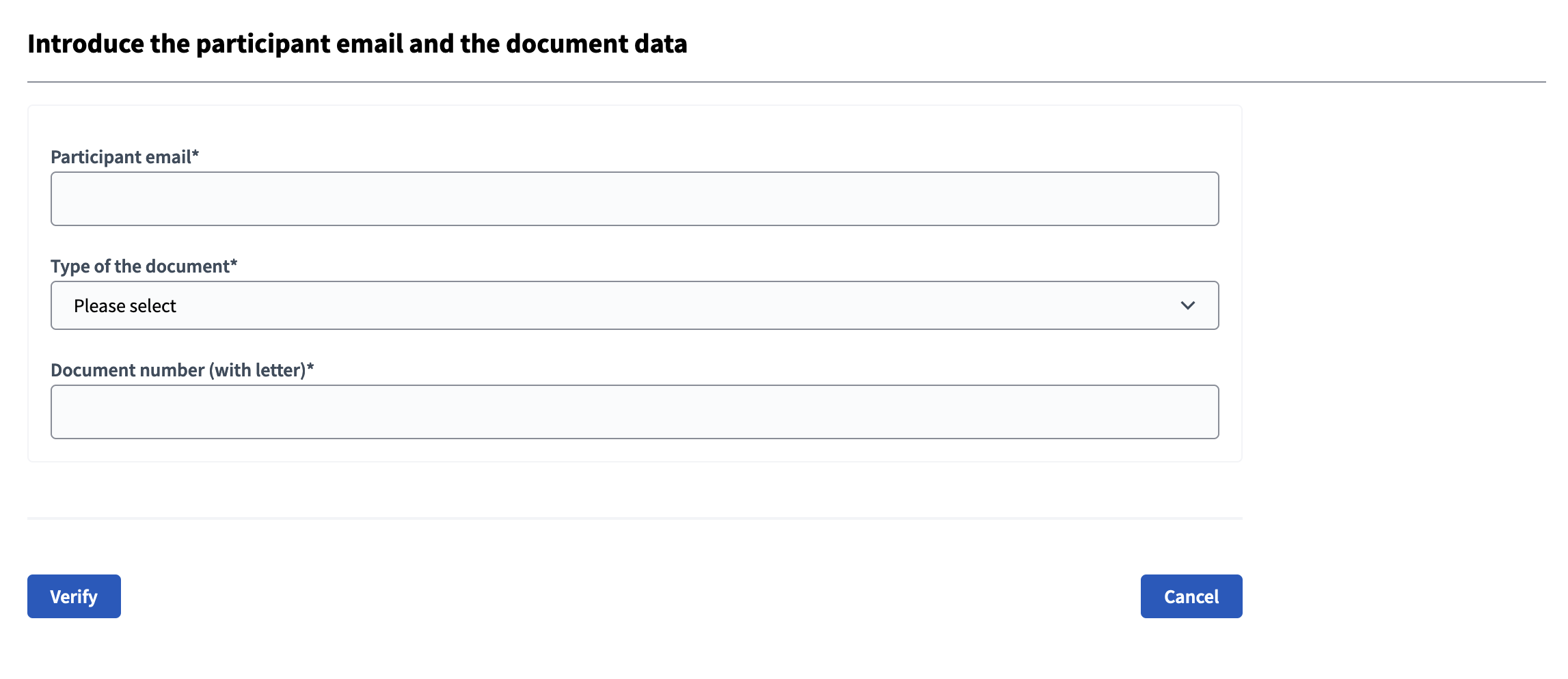
| Campo | Tipo | Descripción |
|---|---|---|
Email del participante |
Requerido |
Email del participante registrado |
Tipo de documento |
Requerido |
Can be: ID or Passport |
Número de documento |
Requerido |
Número de documento del participante. Por ejemplo, "12345678Z" |